 Yamal Rabona AI
How to Make an Ozil Goal AI Video – Step-by-Step Guide
Follow the Ozil Goal AI workflow from photo upload to Stripe checkout and download. No login, prompts or editing. One 15-second video with audio for $6.99.
Last updated: 2026-10-16
Published by Yamal Rabona AI
Make yourself the main character
An Ozil Goal AI video places the person from your photo into a football scene inspired by Özil’s famous goal. The fixed video template guides the movement and camera, so you can focus on choosing the character.
You can make this video directly in your browser without CapCut or a CapCut subscription. There is no prompt to write and no timeline to edit. The template is already prepared; you only need to choose and upload your photo.
Before purchasing, watch a real generated example. The current offer is one 15-second vertical video at 720p with audio for a one-time $6.99 payment. Generation is not instant, and the result can differ from the sample.
There are two ways to make this effect: use the prepared generator below, or assemble the photo, video reference and prompt yourself in a compatible AI video tool. Both need the scene reference if your goal is to follow a particular clip. Skip to the manual workflow if you already have a tool and your own permitted reference footage.
If you are trying to identify a video you saw, start with what the Ozil Goal AI trend looks like.
1. Choose your photo
How to put yourself in the Ozil goal video
Start with a photo of yourself, rather than a screenshot of the player you want to replace. Your face and visible clothing guide the new main character; the prepared template supplies the football action. You do not need to film yourself running or kicking, wear a football kit, or remove the background. See the photo-to-football example for an indoor portrait paired with its actual output.
Pick a clear image of one adult who has agreed to appear. Keep the face visible and evenly lit. A full-body photo helps the generator interpret the outfit and proportions. JPG, PNG and WebP files up to 10 MB are accepted.
Avoid group photos, heavy filters and faces hidden by sunglasses or hands. The photo guide has more tips.
Click anywhere in the upload card to open the file picker, or drag your image into it. Wait for the image preview and confirm that you selected the right photo. An unsupported or unreadable file needs to be replaced before checkout.
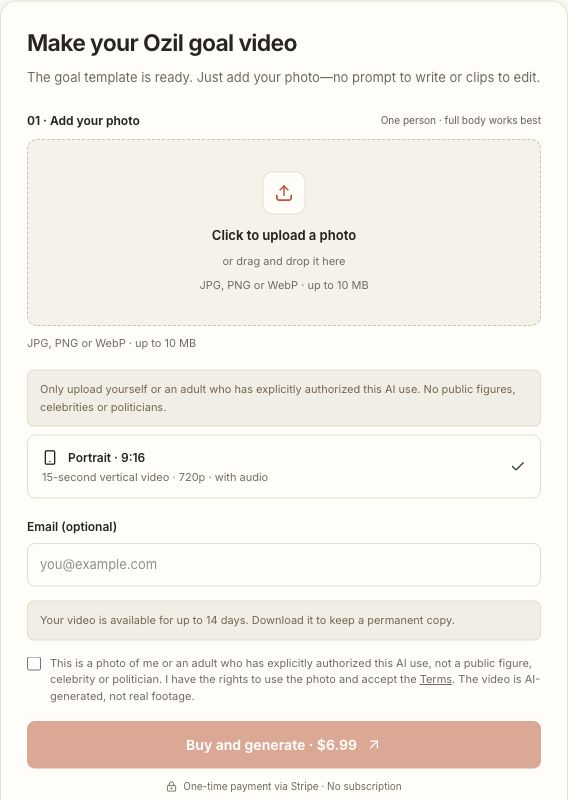
2. Review your order
Upload your image and check the preview. Each order includes one 15-second vertical video at 720p with audio. You do not need to write instructions or supply a reference video: the template is already included.
Confirm that you have permission to use the photo and accept the Terms. You may add an email for order support; it is optional.
The template already includes the football footage reference and soundtrack reference. Your photo controls the requested replacement character; there is no separate scene, duration or prompt field to fill in.
3. Check out as a guest
Continue to Stripe for a one-time $6.99 payment. You do not need to create an account or subscribe. Review the offer shown at checkout before confirming.
After you select Buy and generate, the site prepares your order and uploads the image before opening Stripe's checkout. Keep the page open during this step. Stripe may ask for billing information even if you leave our optional email field blank.
If you cancel or close checkout, use the same saved order to continue when possible. Do not assume that arriving on an order page means payment succeeded: check the payment and generation status shown there.
Keep your private order link. It lets you return to the result on another device, so treat it as private. Orders are also saved under My orders in the browser used to create them.
4. Follow the progress
After payment, you return to your order page. The page updates as the video is queued and generated. A payment confirmation does not mean the video is already finished; processing time depends on demand.
If the order needs attention, use the Feedback button in the bottom-right corner. Include an email if you want a reply. The available order reference is attached automatically.
| What the order shows | What to do |
|---|---|
| Payment pending | Check whether you completed checkout. Continue with the same order instead of buying again. |
| Queued or generating | Keep the private link and return to it for progress. Refreshing does not require another purchase. |
| Ready | Play the video and download it before the displayed deadline. |
| Failed or needs review | Use the free Retry button when available. If the order needs review, use Feedback. Avoid making a second purchase to resolve the first. |
| Expired | The temporary access period has ended. Use a copy you downloaded earlier. |
5. Download and share
When the page says “Your video is ready”, select “Download video”. Files are available for up to 14 days; save a copy before the deadline shown on your order.
Watch the complete clip before sharing. AI can alter likeness, clothing and movement. Label the result as AI-generated, and add only music or other material you have permission to use.
New orders request audio using a separately supplied soundtrack as a reference. Listen to the result as well as watching it: AI-generated sound can vary from the supplied recording. Our published example includes audio; turn on sound in the player to hear it.
How to make the Ozil Goal AI trend for Instagram Reels
You can create an Ozil Goal AI Reel from a photo without editing in CapCut or writing a prompt. Our generator makes the clip; you choose where to share it. The same workflow also works for TikTok and YouTube Shorts.
- Upload your photo here. Choose yourself or an adult who has explicitly authorised this AI use. Public figures, celebrities and politicians are not allowed.
- Pay once and keep the order link. One 15-second vertical video at 720p with audio costs $6.99. You do not need an account on this website.
- Download the completed MP4. Watch it with sound and check the face, outfit and football action before sharing.
- Upload it as a Reel in Instagram. Add your own caption, identify the clip as AI-generated and review the post before publishing. Our website does not connect to your Instagram account or publish for you.
Before you publish your Reel
Save the actual MP4 to your device first. If you generated it on a computer but post from your phone, transfer the downloaded file to your phone rather than sharing the private order URL publicly. Check that the file plays locally with sound before opening Instagram.
When preparing the Reel, select the downloaded video, keep the full vertical frame visible and preview the whole goal. Check that captions or stickers do not cover the main character or ball. If you add music, listen for overlapping sound and adjust the original audio in the editor you use. Extra music and edits are optional; the generated video already includes audio.
A cover frame showing the character and ball helps explain the clip. Use a caption that describes what viewers are seeing, such as “My photo turned into an AI football goal.” Review the platform's current AI disclosure controls before publishing. Adding the video to Instagram does not require you to change how you generated it here.
Do I need CapCut to make the Ozil Goal AI trend?
No. The prepared generator handles the scene and action. You can download the finished MP4 without a CapCut subscription or a separate editing timeline. See the workflow without CapCut.
Can I make the football goal video with my own photo?
Yes. Upload one clear photo of yourself. See our actual input photo and generated video for an example of a seated portrait becoming a running character. Appearance and motion can vary between generations. If you found the effect under the name “Ozil Bounce”, compare its action with our preview before choosing the template.
Do I need to find the original video, music or an Ozil Goal AI prompt?
No. When using our generator, you supply only your photo. The template and audio setup are included; there is no reference-video upload, music upload or prompt field to complete.
If you cannot find your video
Open My orders in the browser used for checkout, or open the complete private link you saved. An order email field is not an automatic recovery service; do not rely on it as your only way back.
If Stripe confirmed payment but your order still does not show it, contact support@yamalrabonaai.com or use Feedback. Include the order number and approximate payment time, but never your full private link or card details. Read the refund policy for failed-generation and payment issues.
Make it yourself with a photo, video reference and prompt
You do not need to buy a generation here to use this guide. Our basic prompt example is free to read and copy; it is not the production template used by this website. A video tool may still charge for generation, and a free trial is not guaranteed.
- Prepare the source clip. Use footage you have permission to upload. Select the continuous goal sequence whose pitch, camera and timing you want to follow. Match its duration to the model's supported limits rather than stretching a short action with invented scenes.
- Choose the replacement photo. Use one clear adult subject with permission. Show the face and the clothing you want the model to reproduce. Start with the same photo guidelines as our generator.
- Select a video-reference mode. Confirm that the tool accepts a source video alongside the character photo. A text-to-video or image-only mode can invent a new camera and stadium even when the written prompt describes the right goal.
- Attach, then identify the references. Upload the image and video through that tool's controls. Adapt the prompt's reference names and describe the attacking player unambiguously. Ask for one character replacement while retaining the source scene and action. Do not paste a marker such as “@Video1” without attaching its file.
- Handle sound explicitly. If the model supports an audio reference, attach sound you have permission to use and enable generated audio. Otherwise, remove unsupported audio instructions and handle sound separately. Do not assume that a video input copies its soundtrack.
- Review before retrying. Watch the whole result, especially when the goalkeeper or a defender blocks the character. Check the ball, feet, outfit, camera and sound. Correct one specific input or instruction at a time; each retry may cost money.
Our development attempt with a timed, text-only prompt created a different scene from the one we wanted. Adding the source video gave the model a concrete movement and camera reference. The published example shows one resulting output; this is not a controlled comparison of models or a measured success rate.
When using another video tool, check its documentation for supported reference inputs. Different interfaces can expose different controls. You manage their account, settings, generation costs and downloads when working outside this website.
Learn which steps you can skip without CapCut, explore the prompt guide, or start below.